Now in LifeLink / Hardware phones
Desk & handheld phones.
Connected to your clinic.
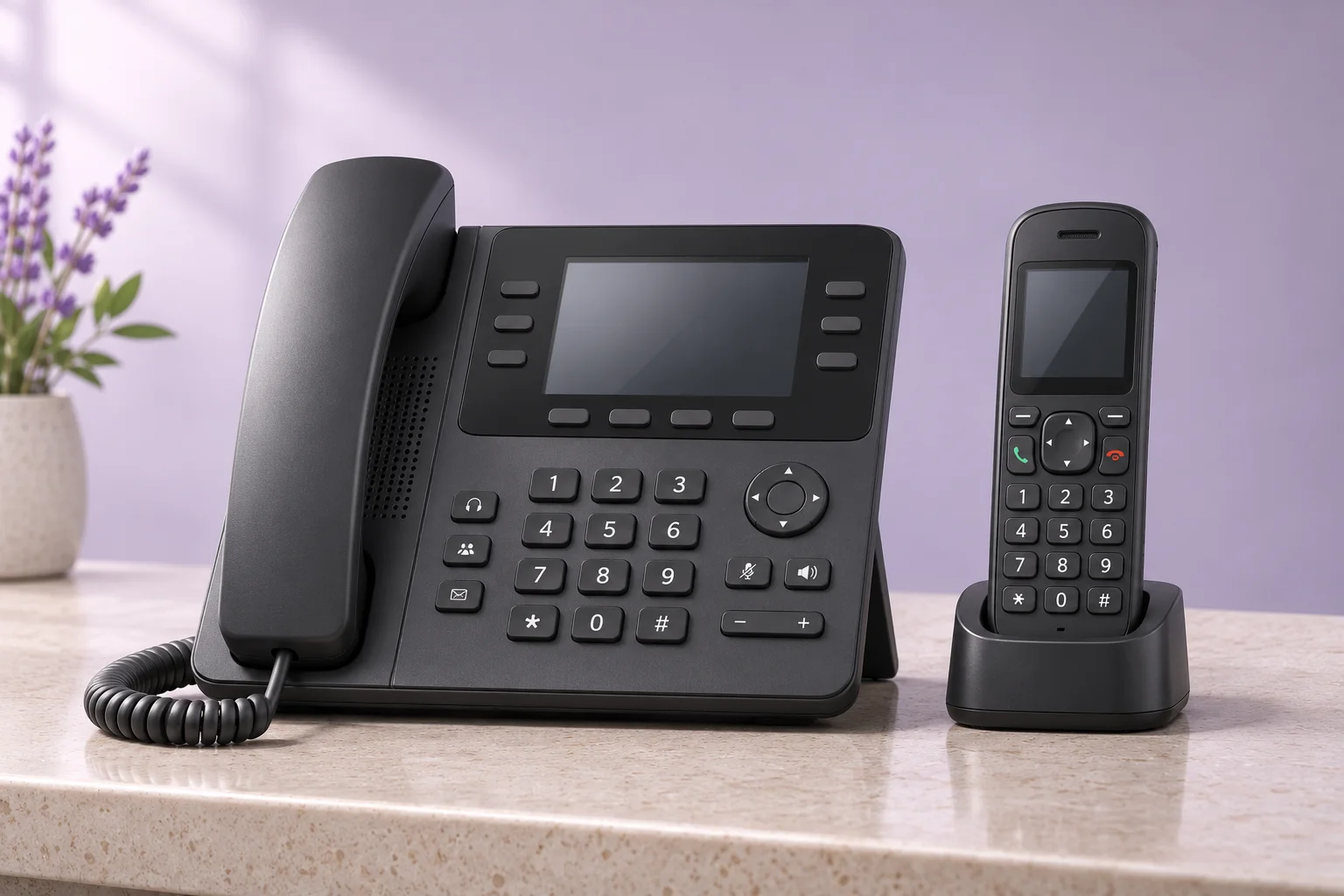
A familiar handset at reception. A compatible SIP handheld for your team. Bring hardware phones into LifeLink and choose where each person answers.
Your clinic number and existing call flow stay in place when you add a handset.
One team.
More ways to answer.
Choose an answer method for each person in your clinic. When that person is included in Human Routing, LifeLink sends the call to their selected destination.
Desk or handheld phone
Use a registered SIP handset at reception or a compatible cordless handset with a SIP base.
Browser calling
Answer in LifeLink on a computer. Keep this option for staff who work at their screen.
Personal phone
Route to a staff member's North American phone number when that is their chosen answer method.
A clearer phone workspace
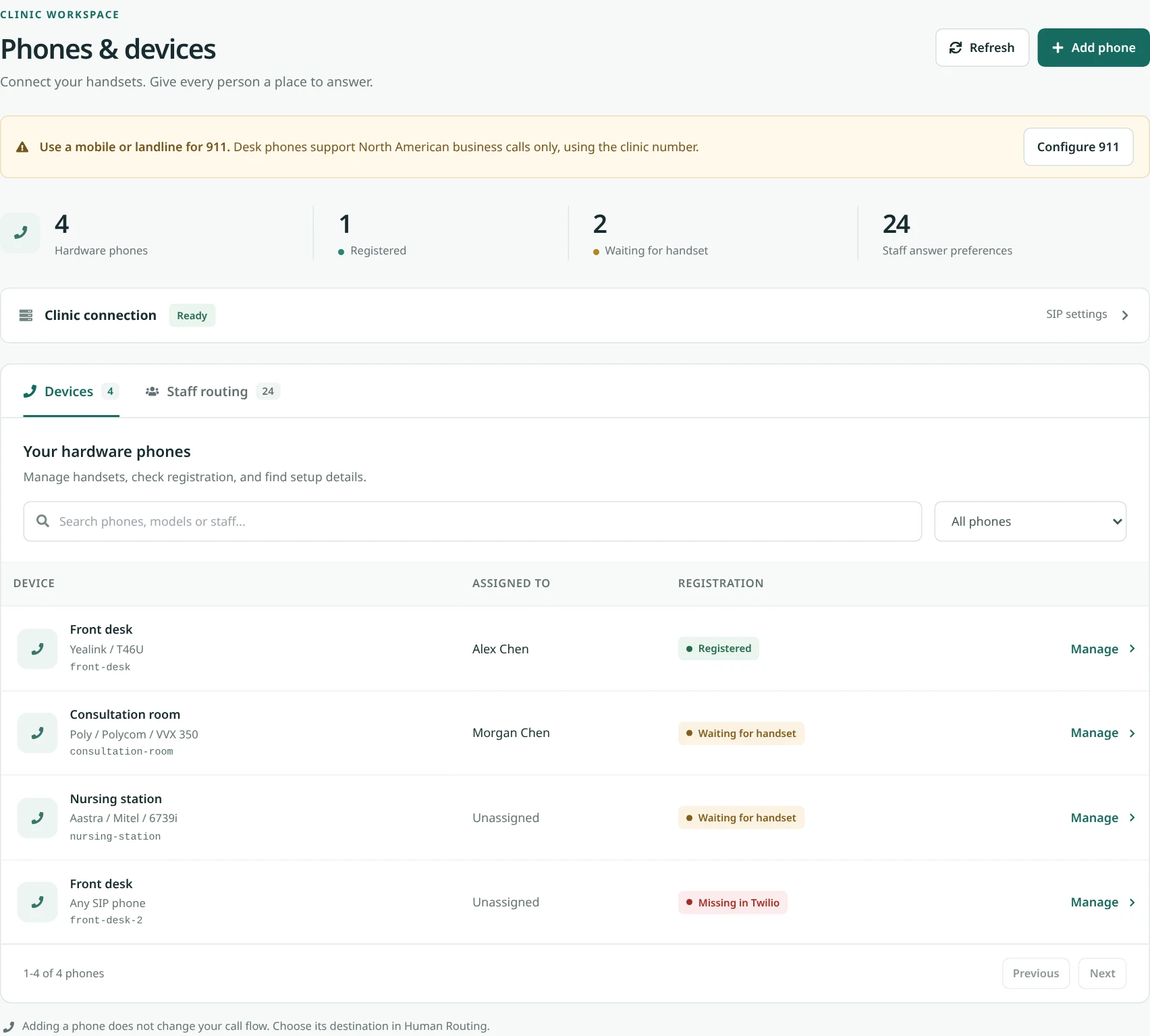
Know which phone is ready.
Find a handset, see its registration status, and manage setup details in one place. A separate staff directory keeps answer preferences easy to find.
Bring compatible hardware
Start with the phone.
Confirm the connection.
Your phone must support SIP registration. For a cordless handheld, check the base station as well as the handset. Ordinary cordless landline phones and smartphones are not automatically SIP devices.
Setup guidance covers Aastra / Mitel, Yealink, Poly / Polycom, Grandstream, Cisco and generic SIP hardware. Confirm your exact model and firmware before purchasing; these are setup options, not a certified-device list.
Discuss your clinic's phones- 1
Add your phone
Activate clinic calling, create the clinic SIP connection, and give each handset a recognizable label.
- 2
Connect the handset
Enter the SIP username, one-time password and registrar on the device or its base station. Check registration in LifeLink.
- 3
Choose where calls ring
Set a staff answer preference or add the hardware phone directly to Human Routing. Test inbound and outbound calls before relying on it.
Before you connect a phone
Which desk and handheld phones can I connect?
LifeLink supports hardware phones that register to a SIP account. For a cordless handheld, the handset or its compatible base must support SIP registration. Setup guidance is available for Aastra / Mitel, Yealink, Poly / Polycom, Grandstream, Cisco and generic SIP phones. A brand name is not a compatibility guarantee: confirm the model, base station and firmware with LifeLink before buying or connecting hardware.
Does adding a handset change my clinic number or call flow?
Adding a hardware phone does not move your public clinic number or replace its existing call flow. Add the phone, then choose it as a destination in Human Routing, either directly or through a staff member who answers on that device.
Can staff choose between a browser, personal phone and desk phone?
Yes. Set an answer preference for each staff member: browser calling, a personal North American phone number, or a registered hardware phone. That preference is used when the person is included in Human Routing. Assigning a phone to a person alone does not add them to the routing list.
What number appears when I call from the handset?
Outbound calls from a registered handset use the clinic number for supported North American business calls. International and premium destinations are blocked.
Can these phones call 911?
911 is off by default. A clinic administrator must configure emergency calling with the clinic civic address and confirm it is enabled before relying on it. Dispatch uses that registered clinic address, not the current location of a handheld phone. Keep a separate mobile or landline available as a backup.
How is a phone connected?
Activate calling for the clinic, create its SIP connection, then add the handset in Phones & devices. LifeLink provides a SIP username, one-time password and registrar to enter in the phone or base station. Check registration before using the device for calls. TLS/SRTP must stay off until the device firmware has been verified with Twilio Secure Media.
Are phones supplied by LifeLink?
This feature connects compatible hardware to LifeLink. It does not mean that a handset is included with your software plan. Ask for a model and calling-cost review during your demo.
Bring your phone setup to the demo.
Tell us which handsets you use and how your team answers. We will walk through compatibility, routing and calling costs.
Explore the full clinic phone system